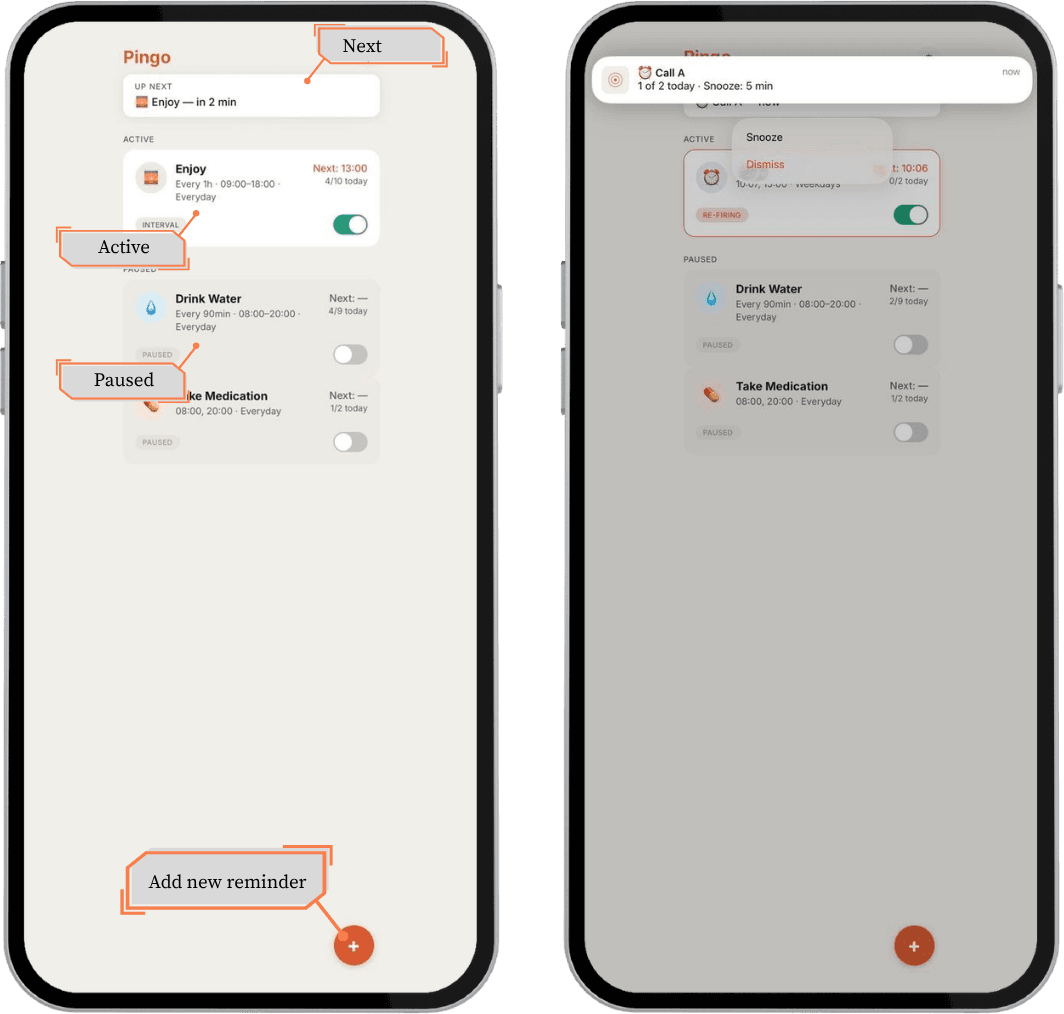
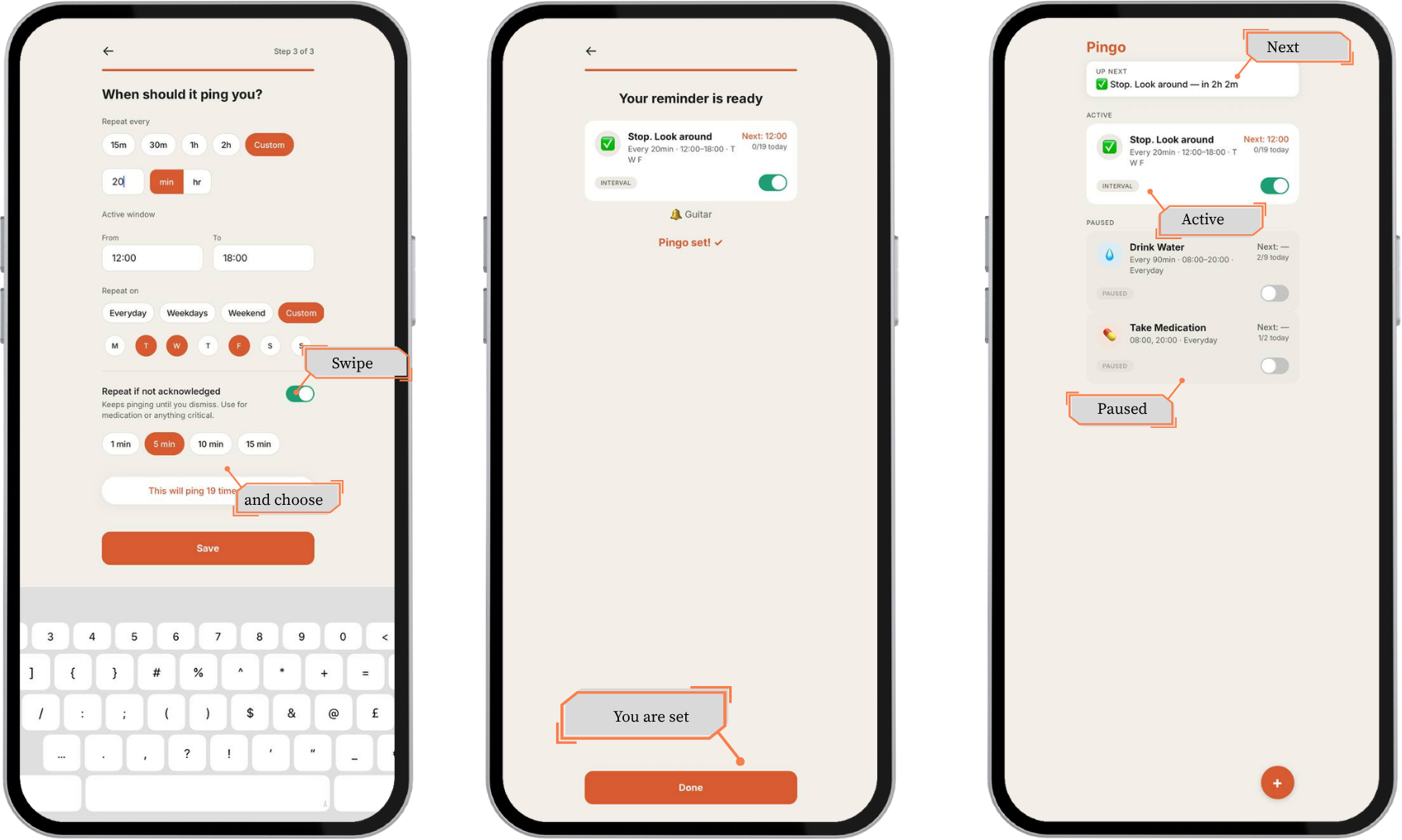
Everything sits on one screen: what's next, what's running, and what's paused.
How to use Pingo
Pingo does one job: remind you, on a schedule you set, until you actually respond. This walkthrough covers the whole app: from the home screen to both reminder patterns, the persistence setting that makes Pingo different, and the gestures for pausing, editing, or deleting.
If you want the story of why it exists, that lives in The reminder app that didn't exist. This one is the practical guide.
The home screen
Open the app and you see three groups. Up next shows the very next ping across every reminder, with a countdown. Active lists what's running right now: the pattern, the next fire time, and how many times it has already pinged you today. Paused holds anything you've turned off without deleting it.
When a reminder fires, you get a full-screen notification with two choices: Snooze or Dismiss. Turn on "repeat if not acknowledged" for that reminder, and ignoring it doesn't make it go away. It fires again a few minutes later, marked "re-firing," until you deal with it.
Creating a reminder: Window Repeat
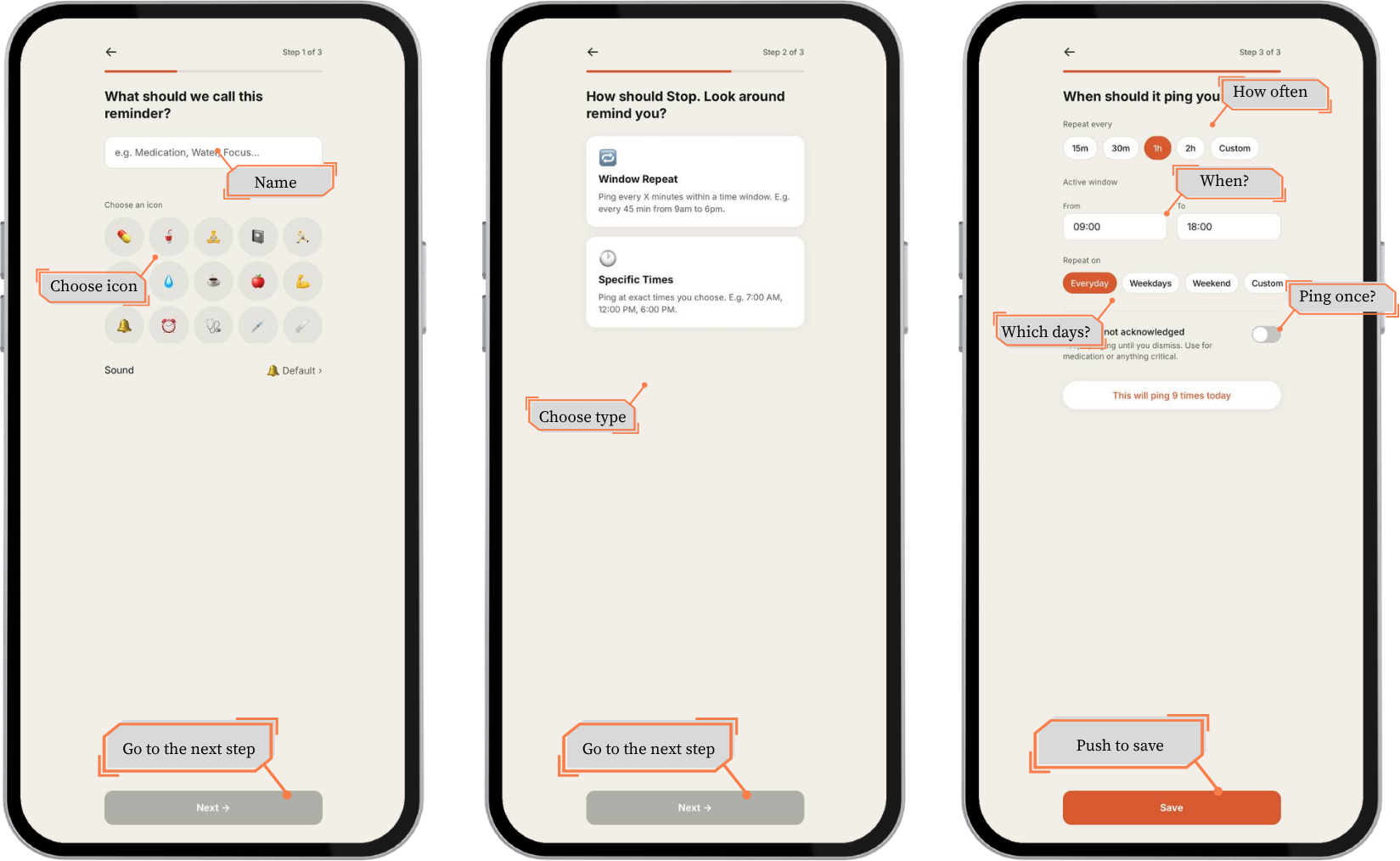 Three steps. Name it, pick a pattern, set the schedule.
Tap the + button. Step one: name the reminder and pick an icon: medication, water, focus, whatever fits. Step two: choose a pattern. Window Repeat pings you every X minutes inside a time window, like every 20 minutes from noon to 6pm.
Step three sets the schedule itself: an interval, a start and end time for the window, and which days it runs. A live counter at the bottom shows exactly how many pings that adds up to today, so you can catch a setting that's too aggressive before you save it.
A few taps worth knowing
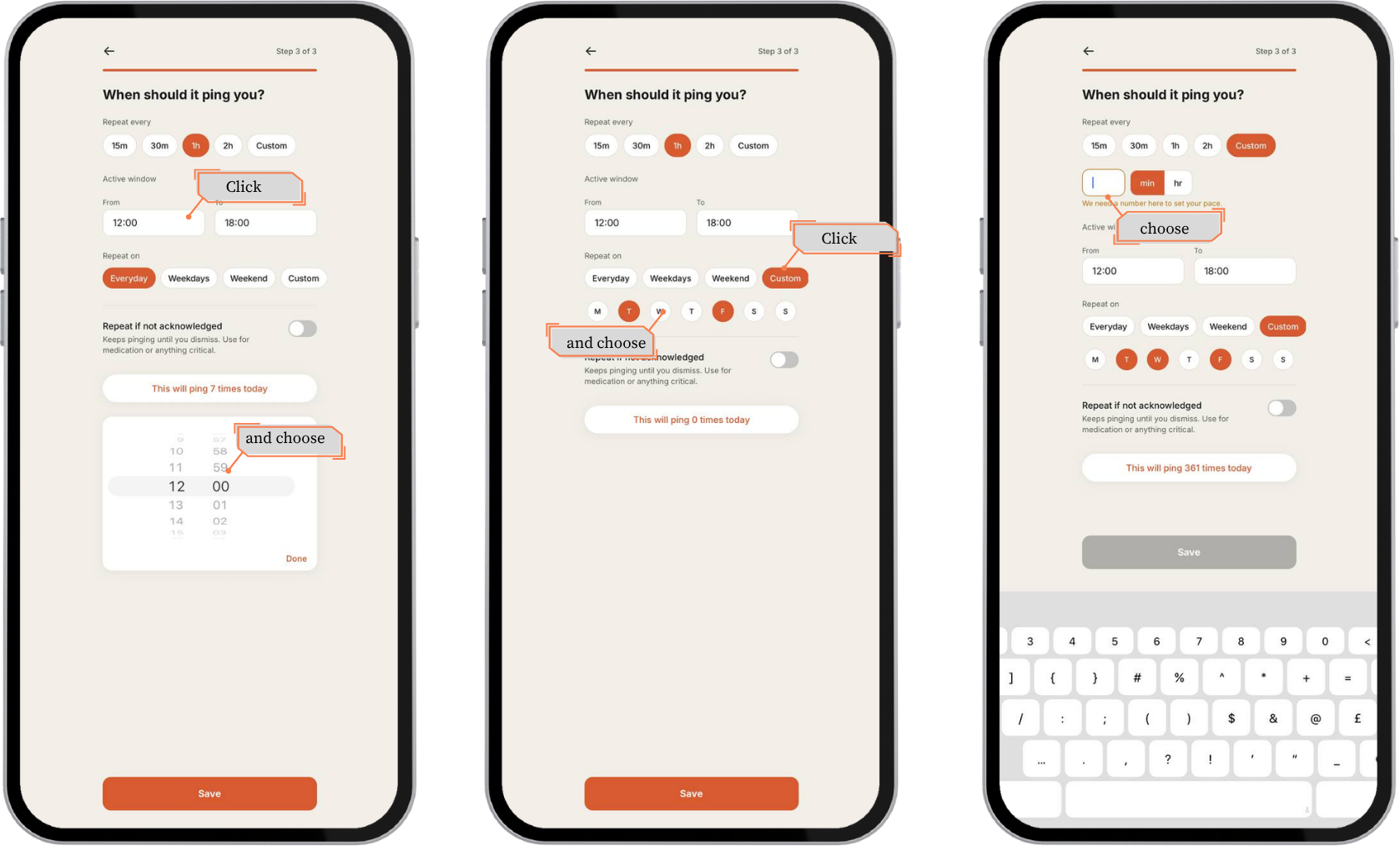 Tap any time field to open the picker. Custom days and custom intervals work the same way.
The time fields on step three aren't just for display. Tap either one to open a picker and change it. Custom under days lets you pick individual days instead of Everyday or Weekdays. Custom under interval opens a plain number field, so you can type any interval in minutes or hours, not just the four presets.
The other pattern: Specific Times
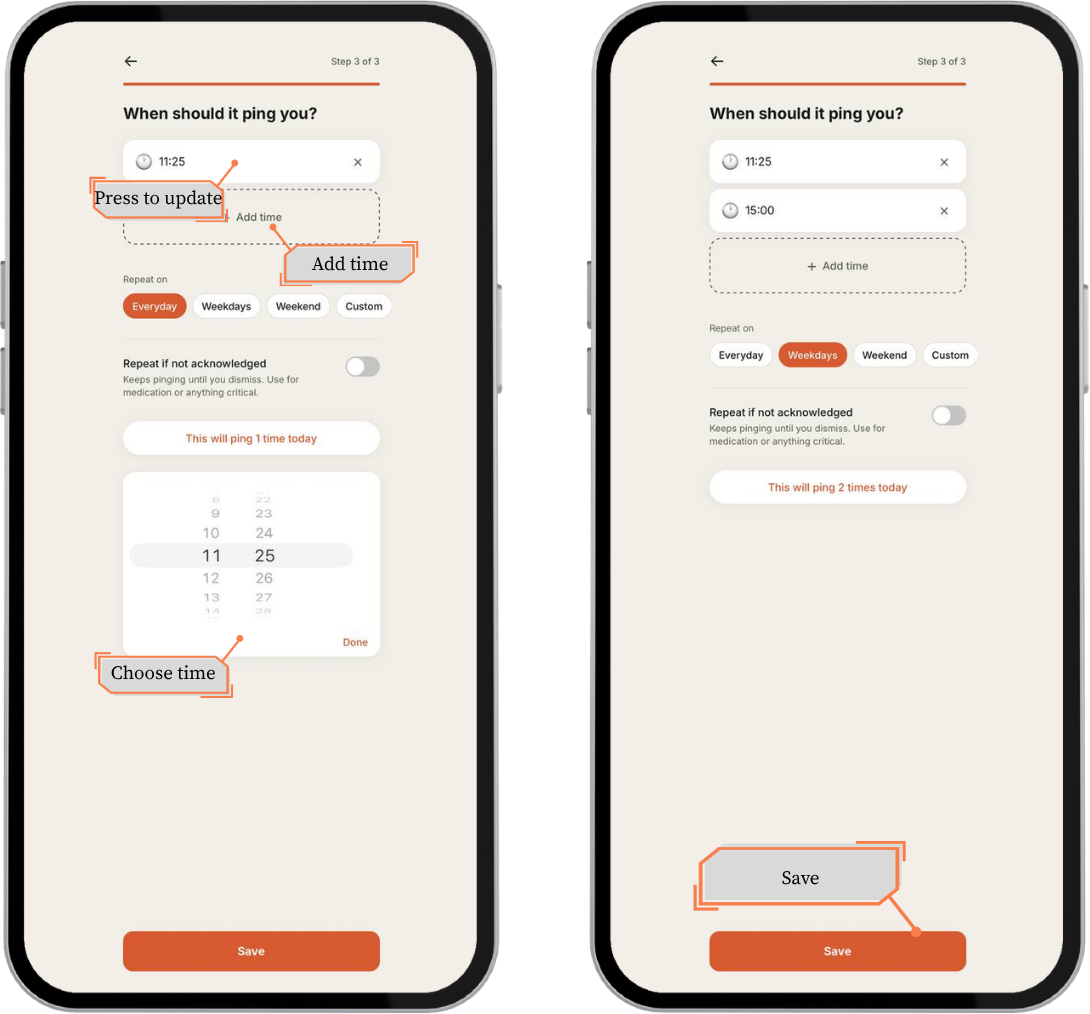 Add as many fixed times as you need, then choose which days they apply to.
If a reminder needs to fire at exact moments instead of a repeating interval, pick Specific Times on step two instead. Add one time, then keep tapping Add time for as many as the day calls for: 7:00, 12:00, 18:00. The same day filters apply underneath.
Repeat if not acknowledged
 One toggle, on either pattern. Turn it on for anything you can't afford to miss.
At the bottom of step three sits one more toggle: Repeat if not acknowledged. It works the same way on both patterns. Turn it on, and if you don't Snooze or Dismiss a ping, Pingo keeps asking, at the interval you choose, until you respond. This is the setting for medication, or anything where "I'll get to it later" isn't good enough.
Save, and the reminder is live right away. No delay.
Managing a reminder
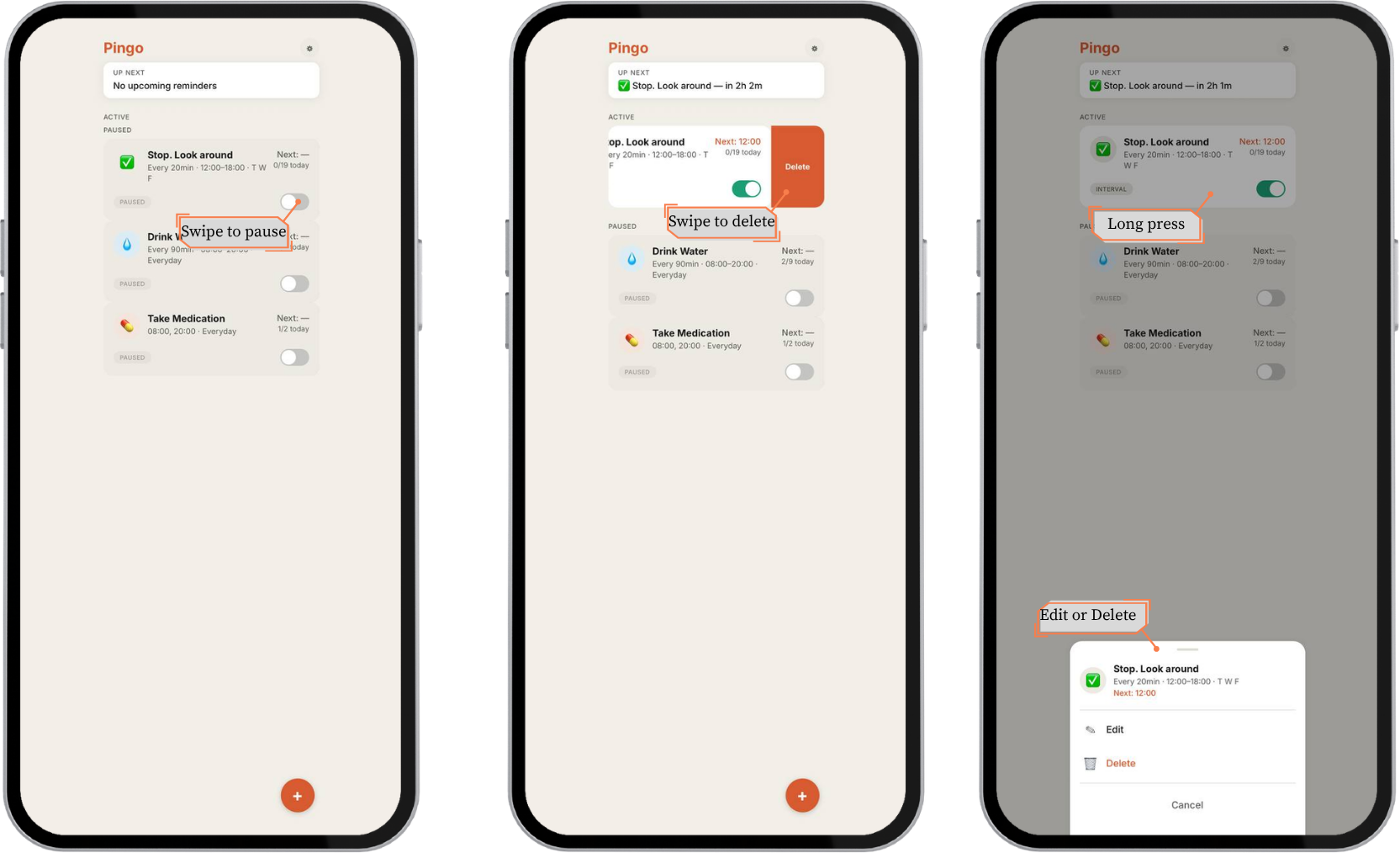 Swipe left to pause or delete. Long-press for both options plus Edit.
Once a reminder exists, three gestures cover everything. Swipe left partway to pause it without losing the setup: the toggle switches off and it moves to the Paused section. Swipe further and a red Delete action appears. Or skip swiping and long-press the card instead: a menu opens with Edit, Delete, and Cancel.
Pause is the one worth remembering. Going on vacation, taking a break from a habit, finishing a course of medication: pause keeps the reminder ready to turn back on exactly as you left it.
That's Pingo. Two patterns, one persistence setting, and nothing else standing between you and getting reminded. Get it on Google Play or the App Store.